Saved IP Profiles
Store IP address, subnet mask, gateway, DNS, device addresses and notes for every network.
Save your commonly used IP configurations and apply them instantly. Move between office networks, customer sites, test environments, machines and devices without repeatedly digging through Windows settings.
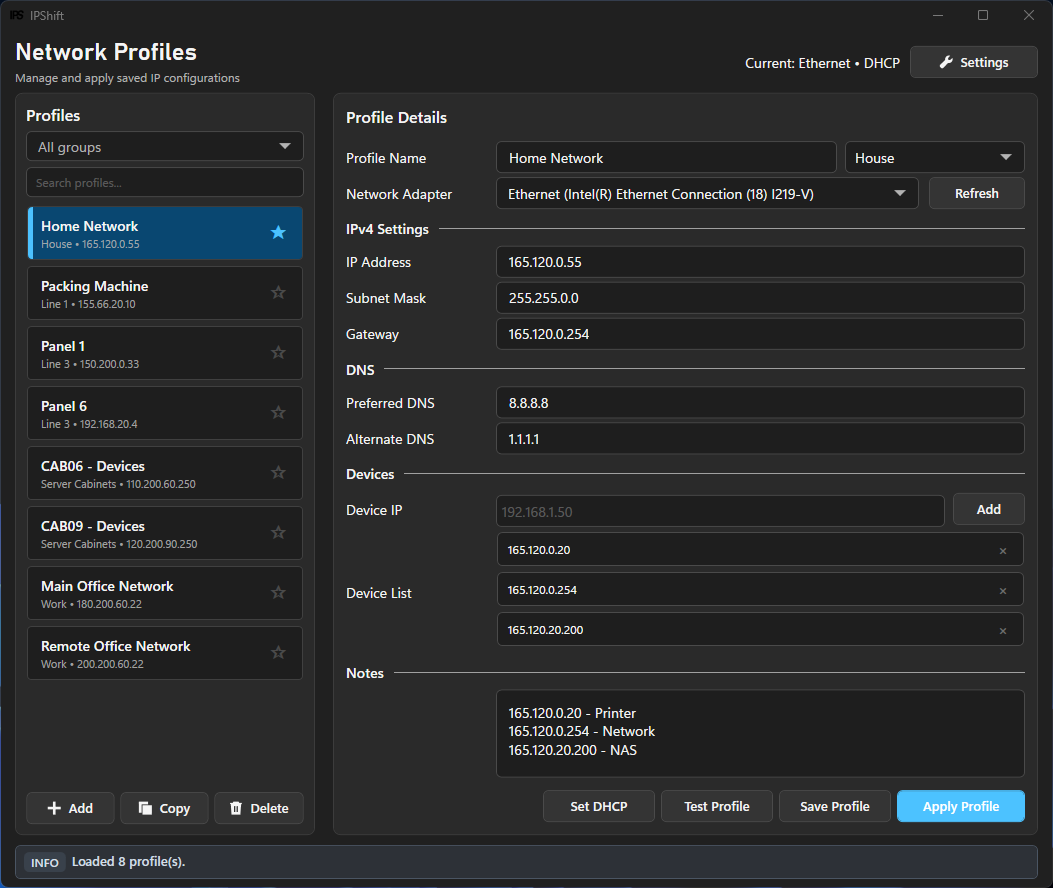
IT technicians, engineers and technical professionals move between DHCP, customer networks, server ranges, devices and isolated test environments. Save each configuration once, then switch whenever you need it.

A focused Windows networking utility for IT, support, lab, field service and engineering work.
Store IP address, subnet mask, gateway, DNS, device addresses and notes for every network.
Target Ethernet, USB Ethernet, Wi-Fi or another physical network interface.
Apply a complete saved configuration without opening Windows network settings.
Return an adapter to automatic IP and DNS configuration for office or home use.
Give each profile a group name, then filter by office, customer, server, lab, project or machine.
See the active profile, switch profiles or return to DHCP without opening the main window.
The tray menu automatically shows whether device addresses saved in the active profile are reachable.
Test a profile and its configured devices before changing the adapter settings.
Keep device names, customer details and practical reminders with the relevant network.
Back up profile lists, move them to another PC or share them with colleagues.
Choose a light or dark interface, or allow IPShift to follow the current Windows theme.
Keep a profile file locally or in a shared OneDrive, Dropbox or network folder for team access.
Move between office, customer, server, test, home-lab and machine networks without rebuilding your laptop configuration each time.
192.168.1.1 · Online192.168.1.10 · Online192.168.1.20 · Online192.168.1.30 · Online192.168.1.40 · Offline192.168.1.50 · OnlineEnter the network settings you use regularly: IP, subnet, optional gateway and DNS.
Choose the Windows Ethernet or network adapter you want IPShift to configure.
Select a profile and apply the complete configuration whenever you need it.
This interactive preview shows how a saved profile changes the complete adapter configuration.
Automatic (DHCP)AutomaticIntel Ethernet ConnectionAutomaticMove between office, customer, server and troubleshooting networks without repetitive setup.
Keep frequently used subnets and diagnostic configurations ready to apply.
Switch between management, server, test and isolated networks in seconds.
Save network settings for different customer sites and equipment.
Maintain customer profiles and switch configurations while troubleshooting on-site.
Move between development, test, lab and isolated network environments.
Reach servers, NAS devices, hypervisors and equipment across different subnets.
Connect to PLCs, HMIs, robots, drives and industrial Ethernet networks.
Select a feature to see how IPShift works across everyday technical environments.
Save complete adapter settings, device addresses and notes, then apply the profile when you need it.
Switch between your Windows network configurations without repeatedly digging through network settings. Choose the device allowance that suits you.
Both licences use the same IPShift installer. An internet connection is required for initial licence activation.
After purchase, your Lemon Squeezy email contains your licence key. Select View Order in the email to download IPShift, install it and enter your key.
The standard IPShift licence allows activation on up to 2 devices. IPShift Team allows activation on up to 10 devices and is intended for teams or businesses with multiple Windows PCs.
No. IPShift Team is a one-time purchase.
IPShift Team supports activation on up to 10 devices.
If the activation limit has been reached, an existing installation may need to be deactivated before activating another device.
IPShift is a Windows IP switcher and network profile manager that lets you save and quickly apply network adapter configurations.
It is useful for individuals and organisations, including IT support teams, MSPs, field service departments, network engineers, system integrators, developers, lab users and automation teams. The Team licence suits organisations with multiple staff or laptops.
Yes. You can create profiles for offices, customer sites, servers, test labs, home labs, machines and other networks.
Yes. A profile can configure an adapter to obtain its IP and DNS configuration automatically.
IPShift lets you select the network adapter you want to configure.
Yes. Profiles can be grouped or filtered by customer, site, lab, project, machine or any label that suits your workflow.
Profiles can be exported and imported, making it easier to create backups or move configurations between computers.
Yes. Controls and automation engineers can use IPShift to connect a programming laptop to PLCs, HMIs, robots, drives and industrial Ethernet networks on different subnets.
Windows generally requires elevated permission to change network adapter settings. This is a standard Windows security requirement for this type of configuration change.